30 Aralık 2019 Pazartesi

Virtual Reality


The application of virtual reality technology to foreign language teaching is still at the primary stage. In the immersive foreign language teaching practice, virtual reality teaching can provide students with vivid and lifelike learning environment and cultivate students' autonomous learning ability. The teacher is no longer the centre of teaching but the organizer, the guide and the participant of the entire teaching process. The students can take the initiative to acquire knowledge in the process of real experience. The preliminary research and investigation on application of virtual reality technology to immersive foreign language teaching described in the paper, through the trial with the students, has won sound feedback, enhanced the students' interest in learning foreign languages and achieved satisfactory teaching effect.


The teachers, carrying out the teaching and research works, are the most important and scarce teaching resources. The overall social education resources are limited and excellent education resources are scarce. There are also the imbalance of teaching resources between first-tier cities and second or third-tier cities, the economically developed coastal areas and the underdeveloped areas.
By using virtual reality technology, the excellent classroom teaching video can be saved for sharing such as the provincial or national quality curriculum. By adopting 3D streaming media technology, the online virtual remote education can be achieved, which will help to improve the teaching quality and learning effect of distance education. For the ripening of virtual reality technology and decrease of the cost of related equipment, the virtual reality technology has more opportunities to enter the classroom. The school can purchase virtual reality camera, shoot excellent teaching video and provide them to the remote users for real-time and space learning. At the same time, the preservation of teaching video can provide students the opportunities for after-school review, assist teachers to share their teaching experience, help various colleges and universities share teaching resources and alleviate the problem of the scarcity of high-quality educational resources in a certain degree.

Augmented reality


Language is learned best when learners can learn it through real experiences situated in the learning environment . AR technology makes this process possible as it introduces dimensionality into language classroom through which learners can have a real sense of experiencing the language. This new perspective is to encourage young learners to develop the sense of motivation while they can learn by experiencing and by doing.
This technological system can better operate when the characteristics of the young learner profile are taken into account. The following suggestions can be made for the effective integration of AR technology in young learner language classes:
 Keeping the interest and attention of young learners is an important issue in language classes. AR designs can be effective in maintaining learner attention and interest. However, the content presented through AR should be designed considering the cognitive, social, emotional and physical development of the profile. Otherwise, the material may turn into a source of confusion for young learners. In such a case, they can lose interest and motivation in learning.
 Safety is another significant point in young learner classes. AR technology presents a rich content through multi-senses but it is essential that the content should be determined keeping the physical and psychological safety of young learners in mind. Young minds should not be exposed to information which triggers their psychological and physical safety.
 Since language is for communication, enabling young learners to establish and maintain interactions with other people through the target language should be among the main concerns. AR technology has been shown to promote interaction with people; however, it is also reported that it may result in isolation in some cases. Therefore, while integrating AR technology into language education, teachers should monitor the interactional patterns of their learners and encourage student-student and student-teacher interaction.
 The simultaneous existence of reality and virtuality is an advantage of AR technology. However, while adopting this technology in language classes, teachers should be alert that young learners are not too much fascinated by the virtual presentations. Otherwise, young learners may physically engage themselves in risky acts without analytically thinking of the consequences in real life. Thus, teachers should be careful observers when using this technology and remind young learners that the AR only serves as a material for language education.

Padlet

5 Ideas For Using Padlet in the Classroom


1. Getting to know your “audience”
Create a Padlet in the classroom for students (or faculty) to get to know one another. This could also be useful at a back-to-school night. Ask students to post a note with their name and something they did over the summer or something they are looking forward to learning during the upcoming school year. At a back to school night or open house, it could be part of a scavenger hunt. Leave the Padlet projected for all to see, and have families post their name and a picture of themselves.
2. Formative Assessment
After teaching a lesson, post a “ticket out the door” question to find what students learned that day. You can post a big question, such as your lesson’s essential question, or a specific question to determine who has met an exact objective. This is a great time to figure out what students’ perceive to be the important points about their learning, and it also highlights the misconceptions. (I don’t typically project these Padlets because sometimes students are sensitive of their work when it is new learning. It is best to generate a culture in the classroom that celebrates mistakes so that students see them as the very best way to learn and grow.)
3. Collaborative Research
Padlet can be a great classroom tool for small groups of students participating in collaborative research. To help organize the board, students can post driving questions about their topic, and as they find answers (or more questions) during the research process, they can post them under each driving question. Students can also post links, video clips, and images, making it more effective than traditional notecards.
4. Book Studies and Discussion Points
Padlet is an incredibly useful discussion board for discussion. Whether it is a student-run literature circle or reciprocal teaching groups, or a staff development book study, Padlet is an effective classroom tool. The leader posts a question about the chapter, and participants respond to that question. Students can have literature discussions even when the classroom needs to be quiet, or in the evening from their own homes. Teachers can prepare for professional development book studies by posting thoughts from a chapter prior to meeting in person, which helps the leader of the book study better prepare for the focus of the next session. 
5. Student Sharing
Provide students with an opportunity to share their work without taking the instructional time to share one at a time in front of the room. (Presenting has definite value, but realistically there just isn’t enough time to do this for everything students create.) Allow students to take a picture of what they are working on and post it to a Padlet you’ve set up for them. Have other class members view the posted items, and respond below it by sharing a “Praise” and a “Polish”– one thing they love, and one thing they would have done differently. A reminder to train students about writing effective comments, both positive and constructive, and to teach students how to use those comments once they are received. You could organize this by setting up a Padlet for each project/piece students create, or you could set up a Padlet for each student to post their creations throughout the year.

Voki

Voki gives you as a teacher the opportunity to engage students in any topic area through a simple to use and free resource available anytime and anywhere for almost any purpose. 
I have used Voki’s with students from age 5-13 and they ALL love it and on many occasions I have had students go home and show parents and use them on their own personal blogs or wiki’s. 
I have used Voki’s for:
  • Getting students to share their learning
  • Getting feedback from students
  • Getting students to add a more human feel to their blog or wiki
  • Foreign language speakers to express views and opinions easier
  • Engaging and hooking students into a subject or topic
  • Interacting with students on a global level (e.g. quad blogging)
  • Practising and listening to their presentations (e.g. pronunciation)

Here is my avatar link:

Storybird

Storybird is an online social platform (and Chrome app) for storytelling. Students act as authors, pairing their words with site-curated, licensed art. Students can compose text, but they can't upload their own art; they must use Storybird's curated collection in their picture books and illustrated poems. 
After signing up or logging in with teacher-provided credentials, students can read published stories or create their own. They can repost favorite stories to their own Storybird account feeds, "heart" stories they like, and comment on them. Students can explore what their classmates have written in the class library or click on the Read tab to browse stories using a variety of filters. When students are ready to create their own, there are three possibilities: picture book, long form (think chapter book), and poetry. To get started, students choose which format they want, then browse Storybird's art collection to find illustrations that go with (or inspire) their writing. After students choose the art, the editor launches and lets students choose which illustrations to use, add text, and create as many pages as needed to complete their story. The poetry setting resembles magnetic poetry: students work with one illustration and a collection of word tiles, which they arrange to form a short poem. Authors navigate between pages using a slider at the bottom of the screen, and drag and drop one picture per page or chapter. Students can save and publish stories from the editor and can invite collaborators to work on stories with them. Completing writing activities earns badges and crowns, which can be redeemed for stickers or writing prompts.

It's easy to imagine using Storybird as a free-write station, to prompt various writing tasks, or as a platform for peer workshopping. With a bit of creativity, storytelling can also be linked to a variety of school subjects, including history, science, and even math. Follow the developer-created monthly challenges that inspire students to think about different narrative techniques, a particular illustration, and more. Or, use the guides or interactive courses to lead your students through learning something new about writing. 
With a free classroom account, teachers can create assignments, and review and comment on submitted stories. They'll also be able to arrange for purchase of any student-created work, including organizing fundraisers that give 30 percent of the books' proceeds directly to the school. To bridge the gap between school and home, parents can take their kids' account with them when the class is over.

IS IT ANY GOOD?

This impressive creative writing-centered site offers an easy-to-use tool to help kids make picture books, longer books, or poems. With Storybird, writers can share items with other users and get feedback or choose not to. Colorful illustrations featuring items ranging from animals to mermaids can help spark their imagination, along with story suggestions offered by the site through writing challenges, in case kids can't think of an idea. There's also plenty on hand for them to read, including some stories that feature ethical and moral messages with titles such as "Fun Is for Everyone."
Here is my Storybird story.

Powtoon

Powtoon is an animation and presentation program that can be used to create more interactive and engaging content. It offers a variety of animation styles including cartoons, infographics, and whiteboards. The program is web-based, so you can access your projects from any computer with an Internet connection and Flash.
Complete with a media library, a variety of features, and a clean interface, Powtoon might be a great tool if you’re looking to create marketing or educational content. It uses a subscription-based access plan although it does offer a free plan that allows you to try everything out first.

PowToon has the potential to be a powerful animated presentation tool. Whether teacher- or student-created presentations are the plan, the slide-based format allows presenters some control over how they present their information. Turn writing instruction on its head by teaching students to create expository or persuasive videos. Bring science to life by creating animations of famous scientific discoveries. Ditch the health textbook and let students create infographic-style videos to show the benefits of healthy eating and exercise. Show the power of word economy by having students create public service announcements or 100-word presentations that pack a punch. Liven up your own instruction and grab students' attention by creating animations on an unlimited number of topics -- perhaps including some fun stickers, backgrounds, and borders to keep viewers engaged.
PowToon blogs feature inspirational articles on the merits of using animated presentations -- mostly marketing hype with some useful hints included, so you may find it helpful to browse through them. Teachers should be prepared to spend a class period or two letting students figure out how to use PowToon and its many features, and it will help if teachers know something about the tool in order to guide students. Beware that since PowToon uses images and video from Flickr and Storyblocks, students may inadvertently access inappropriate content. Teachers should remind their students of the school policy regarding such incidents as they create their slides.


While many of PowToon's resources and tutorials focus on business and marketing presentations, the ability to spice up the traditional slideshow presentation enhances its potential as a classroom tool. Students can become teachers, and teachers can increase their tech cred with students by moving beyond the slideshow. There are real opportunities to create problem-based learning assignments and passion projects, and to teach design thinking concepts by having students research issues and create short PSAs or solution-based informational videos. Teachers will want to spend some time teaching students about the balance between text and pictures -- as well as how to plan slide length -- so that viewers don't get bored by too much text or are rushed to read the text that's there. There isn't much worse than being stuck watching video after video filled with paragraphs that overwhelm without teaching much.
Despite its education plans, PowToon's support, examples, and the general feel are geared more toward use in the business world. Social media pages such as Twitter and Facebook are becoming more useful resources for teachers looking to use PowToon as a learning tool, but classroom use feels like an afterthought. Students can share presentations with their peers and collaborate on ideas in class, but real-time collaborative editing capability would be a nice addition. More education-related examples and blogs for inspiration would make this tool an even more valuable classroom resource.

Pixton

Pixton is a cartoon creation tool that allows its users to create awesome comics. Pixton has also a growing community that anyone can access to contribute with their own comics. This tool is very easy to use and does not require any artistic skills to work on it. You can introduce it to your students and let them create their own comics and share them with each other.


Besides the free individual accounts, Pixton offers a service designed specifically for schools called Pixton for Schools which is not free. This service enables teachers to create private rooms for their students in which they can collaboratively create and share their comics.


Some features of Pixton

Here is a list of the main features that Pixton provides for its users:
  • It is free for individual accounts
  • It lets users create their own comics
  • It lets you give text and speech bubbles to characters
  • It lets you edit the shape and position of each comic panel
  • It offers unlimited range of expressions
  • It lets you upload your own photos and personalize them the way you want
  • It provides presets, templates, and shapes.

Hot Potatoes

I. What is “Hot Potatoes”?
        
        The “Hot Potatoes” is a suite of quiz/drill-authoring software created at the University of Victoria, Canada. It includes six applications, enabling you to create interactive exercises:

l      multiple-choice quizzes (JBC)
l      gap-fill exercises (JClose)
l      text-entry (short-answer) exercises (JQuiz)
l      crosswords (JCross)
l      jumbled-sentence/jumbled-word (drag-and-drop) exercises (JMix)
l      ordering/matching (drag-and-drop) exercises (JMatch)

Now you can go to the tutorial folder to look at some examples of the kinds of exercise you can make using Hot Potatoes.

II.Three Steps in Making an Exercise:

 1.       Entering data (questions, answers and so on) and save it as a data file.
2.       Configuring the output (preparing the button captions, instructions, and other features of your Web pages) 
3.       Creating Web pages (compiling your exercise into HTML or DHTML pages) and view your work. 
Step 1: Entering Data
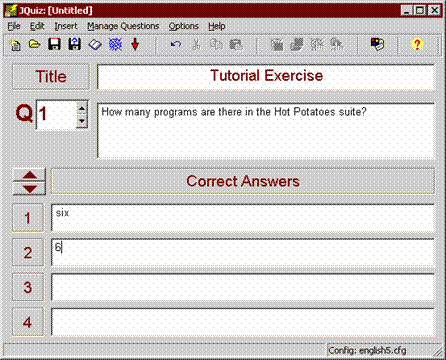
For example, we're going to make a text-entry exercise using JQuiz. The first stage is to enter the questions and answers for your exercise. Start the JQuiz program, then enter the title, question and two answers that you see in the picture below. 
Note that we have entered two possible variations of the answer: the word "six" and the digit "6". This means that the program will accept either of these answers as correct. 
Once you have entered your data, you need to save it, in case you want to change it later. Each of the Hot Potatoes programs saves data in its own special file type; in JQuiz, the files end with the ".jqz" extension. It is important to save your data, since the programs cannot reload Web pages to make changes; the only way to change your Web pages is to reload the data file, make your changes, and then regenerate the Web pages. Call your file "test", or something similar. Then the file name "...\test.jqz" should appear in the caption of the JQuiz program. 

Step 2: Configuring the Output
When a Hot Potatoes program creates Web pages, it does so by combining 3 resources: 
  1. The data you entered 
  2. The configuration information 
  3. A set of "source files", or templates, containing the page structure. 
We have already looked at data; the next step is Configuration. The configuration information is a collection of pieces of text, including instructions for doing the exercise, button captions, and link URLs, which are unlikely to change much from one exercise to another. For example, all of the sample exercises you looked at earlier in this presentation included a button labelled "Check", so that the student could check his or her answer. The caption "Check" is not likely to change from exercise to exercise, so it does not need to be stored with the data; however, you may need to change it (if you are creating quizzes in another language, for example). 
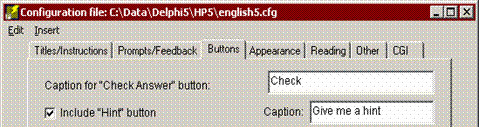
You can get access to all the configuration information by choosing "Configure Output" from the Options menu. We're going to make two changes to the configuration; first of all, we're going to change the caption of one of the buttons, from "Hint" to "Give me a hint". When you see the Configuration screen, click on the "Buttons" tab, and change the entry for the Hint button, as you see below: 
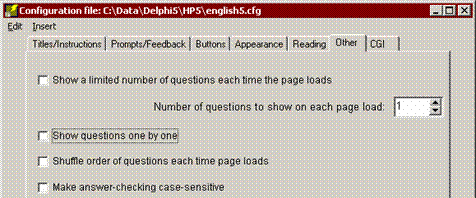
Next, we're going to change one setting on another page of the Configuration screen. If you click on the Other tab, you'll see a check box for making the exercise case-sensitive. You'll remember that our two correct answers were "six" and "6"; however, it would be sensible to accept "Six" or "SIX" too, so we're going to uncheck that box (it may be unchecked already; in that case, just leave it alone). Then the exercise will not be case-sensitive, and all of these variations of "six" will be accepted: 
When you have made your changes, press "OK" to go back to the main screen.

Step 3: Creating a Web Page
The final step is to create a Web page from your data. All you need to do is click on "Create Web page" from the File menu, then give your page a filename. Use the filename "test.htm".
The program will tell you that it has produced a file, and let you view it in your browser. (Note that the single-file output is an improvement over previous versions of Hot Potatoes, when three or more files would be produced for each exercise.) All you have to do now is upload that file to your Website, and you have a working exercise.

29 Aralık 2019 Pazar

Quizlet


What Is Quizlet?

Quizlet’s mission is to help students (and teachers) practice and master what they are learning. In Quizlet, information is organized into “study sets” that users like teachers or students add to their accounts.

When using Quizlet, students log in and choose the appropriate study set for the concepts they need to review. These can be created by a teacher or generated by other users.
Because of the flexibility and customization available, Quizlet can be used in any grade level and any type of class.

3 Pros of Using Quizlet


Overall, Quizlet can be a great tool for you and your students for three reasons:
  1. You can easily differentiate review for your students
  2. You can incorporate collaboration and teamwork into your classes
  3. Students have another way to prepare for tests


Quizlet Helps You Differentiate Review for Your Students


  1. Flashcards – A quick way to review terms and definitions, just like paper-based flashcards
  2. Learn – A personalized study mode based on how well you know information in a study set
  3. Write – A fill-in-the-blank style study tool
  4. Spell – A study mode that dictates a term or definition that you must correctly type
  5. Test – An easy way to quiz yourself on how well you know information in a study set
  6. Match – A time-based game where the student must match terms and definitions
  7. Gravity – A level-based game where the student must answer correctly before being hit by an asteroid


Here is my quizlet mini quiz link for you:

https://quizlet.com/tr/469340213/the-meaning-and-power-of-smell-flash-cards/?i=1xzgnn&x=1jqY

28 Aralık 2019 Cumartesi

Kahoot

                                                                    KAHOOT
If you’re not familiar with Kahoot, it’s a free web-based program that allows teachers to pose questions to children who then respond from a selection of answers electronically on their own devices. It records the answer each child gives to a question, as well as how quickly they respond, so teachers can use the data to assess their children. Ultimately, it a fun and engaging tool that can be used to challenge and assess learners.There are different types of Kahoots available; quizzes, surveys, jumbles, discussions and challenges.

What is a Kahoot quiz?
A Kahoot quiz is a series of questions with between two to four multiple-choice answers to choose from. Teachers can create their own quizzes, duplicate and edit others created and shared by other teachers, or simply play Kahoots created by other users.

The questions are presented on screen with text (and an accompanying image if you desire) and children are given an allotted time to respond using their smart device or computer. Kahoot allocates each multiple-choice answer a colour and shape which children see on their own devices and select by clicking/tapping on them. Questions and answers can be set to randomise each time the Kahoot is played meaning the same quiz can be used again without worrying that children will simply memorise the order of questions and answers.


Children receive up to 1000 points depending on the speed with which they respond correctly and a leaderboard displays the top 5 scoring players. Each individual receives discrete feedback of where they rank within the classroom. Teachers may or may not like this feature, but personally I have found it to be a useful tool for motivating the children I have worked with. Children receive instant feedback when all participants have answered - a red screen for an incorrect answer or a green screen for a correct response. I have chosen to embed a behaviour in the children I work with to show their screens to me as soon as they receive feedback. This highlights which children have gaps in their learning so that I can offer support where it is needed or which children need further challenge as the lesson progresses.


Here is my kahoot quiz,if you want to check it:

https://create.kahoot.it/share/enter-kahoot-title/a8aa657d-4e49-47a1-968f-3184f2de5566

27 Aralık 2019 Cuma

Socrative


Socrative is a cloud-based student response system developed in 2010 by Boston-based graduate school students. It allows teachers to create simple quizzes that students can take quickly on laptops – or, more often, via classroom tablet computers or their own smartphones.


I created a mini quiz for you. If you want to check,there is a link for you:
https://b.socrative.com/#import-quiz/43859227


26 Aralık 2019 Perşembe

Blackboard

                                           BLACKBOARD

You can use any theory or model for teaching your online course because Blackboard Learn is open, flexible, and centered on student achievement.
At Blackboard, we nurture learners and support those who make education possible, from K-12 and higher education to adult learning and workplace training.
As you get started with Blackboard Learn, you'll find that teaching online shares many similarities with teaching in the face-to-face (f2f) classroom.
Blackboard: Students receive mobile updates about your courses, take assignments and tests, participate in discussions, launch Collaborate sessions, and view grades.
Blackboard Instructor: Blackboard Instructor is a mobile app that enables instructors to view course content, grade assignments, connect with students in discussions, and launch Collaborate sessions.

How do I access Blackboard?

To access Blackboard to set up an online course go to:
Login using your NetID information.
When you log in you will see current courses that you teach and also past courses that you have taught.
There will also be tabs running across the top of the screen - from these tabs you can view:
Courses
Organizations
Faculty Support
Student Support

Here is the link I read about Blackboard and learn, if you want to check it:

25 Aralık 2019 Çarşamba

Moodle

Moodle is an acronym for "Modular Object-Oriented Dynamic Learning Environment." It is an online educational platform that provides custom learning environments for students.Educators can use Moodle to create lessons, manage courses, and interact with teachers and students. Students can use Moodle to review the class calendar, submit assignments, take quizzes, and interact with their classmates.
Moodle is used by thousands of educational institutions around the world to provide an organized and central interface for e-learning.Teachers and class administrators can create and manage virtual classrooms, in which students can access videos, documents, and tests.Course chat allows students to communicate with the teacher and other students in a secure environment.
Each Moodle classroom and course can be customized by the class administrator.For example, one teacher may choose to provide a wiki that students can edit, while another may opt to use a private web forum for online discussions.Some teachers may use Moodle to simply provide documents to students, while others may use it as the primary interface for quizzes and tests. Individual class sizes can be scaled from a handful of students to millions of users.

Here is the link the article about moodle I read it

Edmodo

                                                                         EDMODO

What is Edmodo?
Edmodo is an educational website that takes the ideas of a social network and refines them and makes it appropriate for a classroom. Using Edmodo, students and teachers can reach out to one another and connect by sharing ideas, problems, and helpful tips. A teacher can assign and grade work on Edmodo; students can get help from the entire class on Edmodo. It is a safe environment. There is no bullying or inappropriate content, because the teacher can see everything that is posted on Edmodo. Also parents can join the class to bring a level of transparency that is difficult to achieve without technology. All in all Edmodo is a grat companion to just about any class.
What is this guide for?
This guide is to be used as a resource. It is not a guide on how you should use Edmodo, but simply a how-to. Edmodo is an incredibly flexible and powerful educational tool that can be adapted and used in just about any class in a variety of ways. How I use Edmodo and how you would use Edmodo could be totally different depending on what you are teaching, the temperament of your students and the environment you work in. So read on and see how it could work for you.
Why Edmodo?
You do not need a computer lab to use, you don’t have to have laptops in the room, it is something that will complement your teaching and allow you to improve methods of communication with your students outside of class. More communication usually means less confusion, better work, and more time to engage and focus on those higher level essential questions.
Why do I use Edmodo? The points mentioned above are pretty good, but what I really love about Edmodo is their dedication. I also love the fact that Edmodo is constantly updating to make the site more powerful, easier to use and just better overall. Edmodo can be applied to your classroom, your school, or even your district. Did I mention it is all free?

Here is my Edmodo account link:
https://new.edmodo.com/home

Pinterest

                                                                      PINTEREST


Pinterest allows you to use visual assets like photos or infographics as a type of social currency in their own right instead supplementing web pages, blog posts, or other text-based media.
You can easily post images from other websites to your Pinterest account using the “Pin it” task bar button, or you can just browse the Pinterest platform to discover, like, or “repin” content others have already posted.
This visual aspect of the site is one reason why it’s captured the interest of so many businesses, from retailers to photographers and designers, who are using it as a portfolio or product catalog. Customers and clients can say which products they love (shoes, bottles of alcohol, furniture … you name it) and want to buy for themselves, and their friends can further the endorsement by pinning the pictures to their own boards.

Here is my pinterest account: https://www.pinterest.com/mervenurgull/

20 Ekim 2019 Pazar

Second Life

Hi,my name is Mervenur. In my first blog,I want to share my Second Life experience with you. Firstly, Second Life is an app you create your 3D avatar and this app more for teachers and students. When I was creating my account, it was little bit hard for me because I couldn’t understand firstly :) But then it was enjoyable. Also you can get a friend and communicate with them.
And this is my avatar;