I. What is “Hot Potatoes”?
The “Hot Potatoes” is a suite of quiz/drill-authoring software created at the University of Victoria, Canada. It includes six applications, enabling you to create interactive exercises:
l multiple-choice quizzes (JBC)
l gap-fill exercises (JClose)
l text-entry (short-answer) exercises (JQuiz)
l crosswords (JCross)
l jumbled-sentence/jumbled-word (drag-and-drop) exercises (JMix)
l ordering/matching (drag-and-drop) exercises (JMatch)
Now you can go to the tutorial folder to look at some examples of the kinds of exercise you can make using Hot Potatoes.
2. Configuring the output (preparing the button captions, instructions, and other features of your Web pages)
3. Creating Web pages (compiling your exercise into HTML or DHTML pages) and view your work.
Step 1: Entering Data
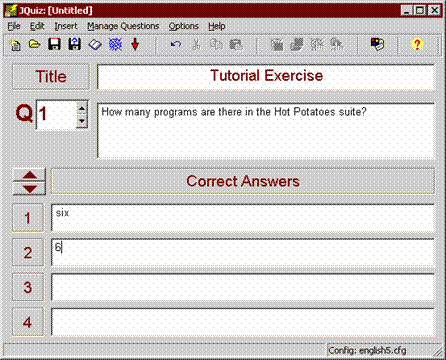
For example, we're going to make a text-entry exercise using JQuiz. The first stage is to enter the questions and answers for your exercise. Start the JQuiz program, then enter the title, question and two answers that you see in the picture below.
Note that we have entered two possible variations of the answer: the word "six" and the digit "6". This means that the program will accept either of these answers as correct.
Once you have entered your data, you need to save it, in case you want to change it later. Each of the Hot Potatoes programs saves data in its own special file type; in JQuiz, the files end with the ".jqz" extension. It is important to save your data, since the programs cannot reload Web pages to make changes; the only way to change your Web pages is to reload the data file, make your changes, and then regenerate the Web pages. Call your file "test", or something similar. Then the file name "...\test.jqz" should appear in the caption of the JQuiz program.
Step 2: Configuring the Output
When a Hot Potatoes program creates Web pages, it does so by combining 3 resources:
- The data you entered
- The configuration information
- A set of "source files", or templates, containing the page structure.
We have already looked at data; the next step is Configuration. The configuration information is a collection of pieces of text, including instructions for doing the exercise, button captions, and link URLs, which are unlikely to change much from one exercise to another. For example, all of the sample exercises you looked at earlier in this presentation included a button labelled "Check", so that the student could check his or her answer. The caption "Check" is not likely to change from exercise to exercise, so it does not need to be stored with the data; however, you may need to change it (if you are creating quizzes in another language, for example).
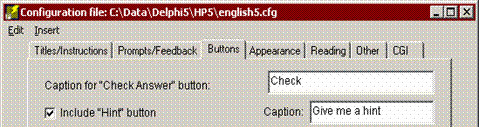
You can get access to all the configuration information by choosing "Configure Output" from the Options menu. We're going to make two changes to the configuration; first of all, we're going to change the caption of one of the buttons, from "Hint" to "Give me a hint". When you see the Configuration screen, click on the "Buttons" tab, and change the entry for the Hint button, as you see below:
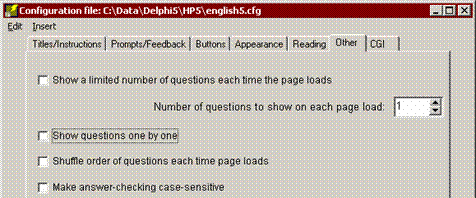
Next, we're going to change one setting on another page of the Configuration screen. If you click on the Other tab, you'll see a check box for making the exercise case-sensitive. You'll remember that our two correct answers were "six" and "6"; however, it would be sensible to accept "Six" or "SIX" too, so we're going to uncheck that box (it may be unchecked already; in that case, just leave it alone). Then the exercise will not be case-sensitive, and all of these variations of "six" will be accepted:
When you have made your changes, press "OK" to go back to the main screen.
Step 3: Creating a Web Page
The final step is to create a Web page from your data. All you need to do is click on "Create Web page" from the File menu, then give your page a filename. Use the filename "test.htm".
The program will tell you that it has produced a file, and let you view it in your browser. (Note that the single-file output is an improvement over previous versions of Hot Potatoes, when three or more files would be produced for each exercise.) All you have to do now is upload that file to your Website, and you have a working exercise.

Hiç yorum yok:
Yorum Gönder